



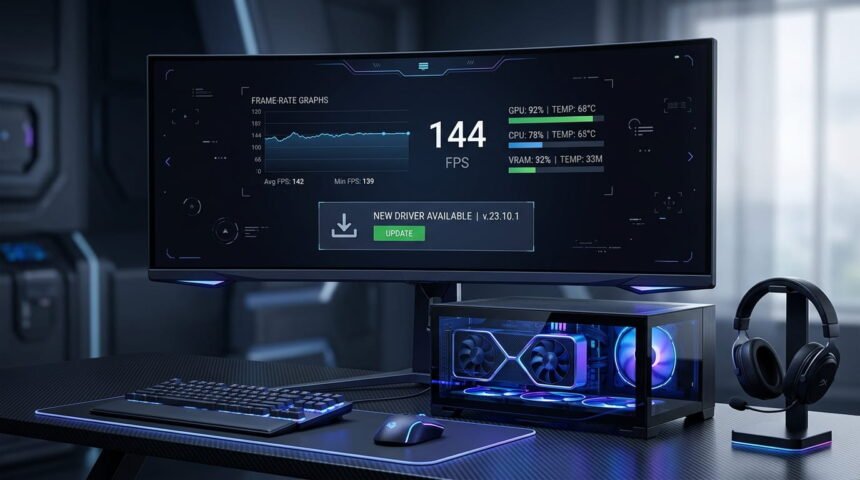
Gaming performance depends on more than having a powerful graphics card. Driver Updates & FPS Calculators for Better Gaming can help players understand why frame rates change, identify performance problems, and keep graphics software current. A driver update may improve compatibility, fix bugs, or add game-specific optimizations, while an FPS calculator or monitoring tool can show whether a system is actually delivering the expected performance.
However, updating drivers alone does not guarantee higher FPS. Processor limitations, graphics settings, temperatures, memory, resolution, game optimization, and background applications can all affect frame rates. Therefore, the most useful approach is to combine current drivers with reliable performance measurements.
This guide explains how graphics drivers affect gaming, how FPS tools work, what the major GPU manufacturers provide, how to interpret FPS results, and which troubleshooting steps make sense when performance suddenly drops.
What Are Driver Updates & FPS Calculators for Better Gaming?
Driver updates are software packages that allow Windows and games to communicate correctly with hardware such as graphics cards. Microsoft explains that drivers provide the communication layer between Windows and hardware devices, including video cards. Windows can also automatically install recommended drivers through Windows Update.
FPS calculators and monitoring tools serve a different purpose. Instead of changing the hardware directly, they help measure gaming performance. Depending on the tool, you may see average FPS, minimum FPS, frame time, GPU usage, CPU usage, temperatures, memory usage, and other information.

Together, these two categories solve different parts of the same problem:
| Tool or action | Main purpose | What it can tell you |
|---|---|---|
| GPU driver update | Improve compatibility and software support | Whether your graphics software is current |
| Windows Update | Install recommended system drivers | Whether Windows has available driver updates |
| FPS counter | Display real-time frame rate | How many frames the game is rendering |
| FPS calculator | Estimate or compare expected performance | Whether hardware may meet a target |
| Hardware monitor | Track system behavior | CPU/GPU load, temperatures and clocks |
| Game benchmark | Test performance under repeatable conditions | How the system performs at a particular workload |
The distinction matters because an FPS tool can tell you what is happening, while a driver update may address why it is happening.
Why Driver Updates Matter for Gaming Performance
Graphics drivers are regularly updated because games, operating systems, graphics APIs, and GPU features continue to change. A new driver can include bug fixes, compatibility improvements, security changes, or optimizations for recently released games.

For example, NVIDIA describes its Game Ready Drivers as being designed for gamers who want support for new games, patches, and downloadable content. NVIDIA also says these drivers undergo testing for gaming performance, stability, and functionality.
AMD similarly updates its Radeon software to support game releases, new hardware, and bug fixes. Its release notes document changes associated with individual driver packages.
Intel also provides Game On graphics drivers for Arc products, with game-performance optimizations and launch-related updates.
Driver Updates Can Fix More Than FPS
One common misconception is that every graphics driver is released primarily to increase average FPS. That is not necessarily true.
A driver can instead address:
- Game crashes
- Texture glitches
- Rendering problems
- Display issues
- Driver timeouts
- Compatibility problems
- New game support
- New graphics features
- Security or stability issues
As a result, a driver update that produces almost no change in average FPS may still be valuable if it fixes crashes or improves frame-time consistency.

Newer Does Not Always Mean Better for Every System
Although manufacturers generally recommend current compatible drivers, blindly installing unofficial or incompatible packages can create problems.
Laptop users should be particularly careful. AMD, for example, notes that OEM drivers may be preferable for laptops and all-in-one computers because manufacturers can customize and validate drivers for specific systems.
Therefore, the safest rule is simple: use the GPU manufacturer’s official driver or the computer manufacturer’s validated driver when appropriate.
How FPS Calculators Help Gamers
An FPS calculator can be useful before changing settings or upgrading hardware. Instead of relying entirely on a game’s visual quality or a single benchmark, players can use performance estimates to understand how different components may affect gaming.
However, FPS calculators should be treated as estimates rather than guarantees.
Actual FPS depends on several variables, including:
- GPU model
- CPU model
- RAM capacity and speed
- Game engine
- Resolution
- Texture quality
- Shadow quality
- Ray tracing
- Upscaling technology
- Frame generation
- Background applications
- Thermal conditions
- Driver version
- Game patches
For example, two PCs with the same graphics card may produce different results if one has a significantly faster processor or better cooling.
Average FPS Is Not the Whole Story
A game reporting 100 FPS may appear smooth, but the number alone does not describe the entire experience.
Consider two hypothetical systems:
| Measurement | System A | System B |
|---|---|---|
| Average FPS | 100 | 100 |
| 1% low FPS | 70 | 35 |
| Frame-time consistency | Better | Worse |
| Perceived smoothness | More consistent | More stutter |
Both systems have the same average FPS, yet System A may feel considerably smoother.
That is why serious performance testing should consider frame-time behavior and low-FPS measurements rather than focusing only on the largest FPS number.
How to Check and Update Graphics Drivers
The correct method depends on your graphics hardware.
NVIDIA Driver Updates
NVIDIA provides official driver downloads and its NVIDIA App for driver management. Its Game Ready Drivers are intended for gamers who prioritize support for newly released games, patches, and DLC.
For an NVIDIA gaming PC:
- Identify your GeForce GPU model.
- Visit NVIDIA’s official driver page.
- Select the correct graphics card and operating system.
- Download the appropriate driver.
- Install it using the recommended installation method.
- Restart the computer if required.
- Test the game again under the same settings.
NVIDIA Official Driver Downloads
If you use an NVIDIA laptop, check the laptop manufacturer’s support page as well, particularly when the manufacturer provides customized graphics drivers.
AMD Driver Updates
AMD offers an official driver and support page with an Auto-Detect and Install tool for compatible Radeon graphics and Ryzen chipsets.
Software: Adrenalin Edition also provides access to driver information, game features, performance settings, and software updates.
For laptops and all-in-one systems, check the manufacturer’s driver recommendations before replacing an OEM package with a generic one.
Intel Graphics Driver Updates
Intel provides Game On drivers for Arc graphics, while Intel’s support pages provide driver downloads for supported Arc and integrated graphics products.
Intel’s current driver documentation also explains that generic Intel drivers can provide newer features and bug fixes, while OEM drivers may include platform-specific customizations.
Intel Official Graphics Drivers
Windows Driver Updates
Windows Update can automatically install recommended hardware drivers. Microsoft also allows users to check optional driver updates manually.
On Windows 11, the general path is:
Settings → Windows Update → Advanced options → Optional updates
If a suitable driver is listed, you can review and install it. However, Windows Update does not necessarily provide every newest gaming-focused GPU driver. When gaming compatibility is the priority, the GPU manufacturer’s official support page is often the better place to check.
How to Use an FPS Calculator Correctly
An FPS calculator becomes more useful when you provide accurate information.
1. Select the Correct GPU
Do not choose a similar-looking graphics card. Different versions can have substantially different capabilities.
2. Enter the CPU
The processor matters because some games are heavily CPU-dependent, particularly at lower resolutions and high refresh rates.
3. Select the Resolution
A system that performs well at 1080p may produce very different results at 1440p or 4K.
4. Choose Game Settings
Ultra settings can create a very different workload from medium or competitive settings. Ray tracing can also change GPU requirements significantly.
5. Consider Upscaling and Frame Generation
Technologies such as DLSS and FSR can change the rendering workload and perceived frame rate. Therefore, an FPS estimate without specifying these technologies can be misleading.
6. Compare the Estimate With Real Testing
After obtaining an estimate, test the actual game. If the calculator predicts 100 FPS but your system consistently delivers 55 FPS, investigate the difference rather than assuming the calculator is wrong immediately.
The discrepancy could result from a CPU bottleneck, thermal throttling, background software, different graphics settings, a game update, or another system-specific factor.
Best FPS Monitoring Options for PC Gamers
An FPS counter is often more useful than a calculator once you already own the hardware.
Some games include built-in performance counters. GPU software can also provide monitoring functions. Dedicated monitoring applications can go further by showing hardware information alongside frame-rate measurements.
For example, FPS Monitor on Steam can display FPS, frame time, average and minimum values, 1% and 0.1% low FPS, as well as CPU, GPU, RAM, temperature, and other hardware information.
When comparing two configurations, record the same information under the same conditions. That creates a much more useful comparison than simply saying that one setup “feels faster.”
Driver Updates & FPS Calculators for Better Gaming: A Practical Workflow
A simple troubleshooting workflow can prevent unnecessary upgrades.
Step 1: Record Your Current Performance
Before changing anything, note:
- Average FPS
- 1% low FPS if available
- Resolution
- Graphics preset
- GPU usage
- CPU usage
- GPU temperature
- CPU temperature
This gives you a baseline.
Step 2: Check the Driver Version
Find your current graphics driver version and compare it with the manufacturer’s official release.
Step 3: Read the Release Notes
Do not install a driver simply because the version number is newer. Check whether the release contains fixes or support relevant to your games.
AMD, for example, publishes detailed release notes describing new game support, fixes, and known issues.
Step 4: Update From an Official Source
Avoid downloading drivers from random websites. Official manufacturer pages reduce the risk of installing an incorrect or modified package.
Step 5: Restart and Test
After installation, restart when recommended. Then test the same game using the same resolution and graphics settings.
Step 6: Compare Results
If performance improves, record the difference. If it gets worse, investigate the driver release notes and consider whether returning to a previously stable driver is appropriate.
Common Reasons FPS Remains Low After a Driver Update
A driver update cannot overcome every hardware or software limitation.
CPU Bottleneck
If the CPU is limiting the GPU, reducing certain graphics settings may not produce a significant FPS improvement.
GPU Bottleneck
If the graphics card is operating close to full utilization, lowering resolution or demanding visual settings may produce a larger performance improvement.
Thermal Throttling
High temperatures can cause hardware to reduce operating speeds. Monitoring temperatures while gaming can help identify this situation.
Insufficient Memory
Limited system RAM or VRAM can cause stuttering or performance problems in demanding games.
Background Applications
Browsers, recording software, launchers, overlays, and other applications can consume system resources.
Poor Game Optimization
Some games are simply more demanding or less optimized than others. A new driver may improve the situation, but it cannot completely rewrite a game’s underlying engine.
FPS Calculator vs FPS Benchmark: Which Is Better?
Both have a place in gaming performance analysis.
| Feature | FPS Calculator | FPS Benchmark |
|---|---|---|
| Uses your actual PC | Usually no | Yes |
| Predicts performance | Yes | No |
| Measures real FPS | Usually no | Yes |
| Useful before buying hardware | Yes | Limited |
| Useful for troubleshooting | Moderate | High |
| Accuracy | Depends on data and assumptions | Depends on test conditions |
| Best use | Planning and comparison | Verification |
A calculator is particularly useful when deciding whether a proposed PC configuration may meet a target. A benchmark is more useful when you already have the PC and want to identify the actual bottleneck.
Important Details Gamers Often Miss
A Higher Average FPS May Not Feel Better
Frame-time consistency can matter as much as average FPS. A system that produces fewer but more consistent frames can feel smoother than one that produces a higher average with frequent spikes.
Driver Updates Can Change Game Behavior
A new driver may introduce fixes or optimizations, but it can also change how a particular game behaves. This is one reason release notes and real-world testing matter.
Laptop Drivers Need Extra Attention
Gaming laptops can have manufacturer-specific power, cooling, display, and graphics configurations. Generic drivers may not always provide the same functionality as an OEM package. AMD explicitly recommends OEM-provided drivers for certain supported laptop and all-in-one configurations.
FPS Targets Should Match the Monitor
There is little value in chasing extremely high FPS if your display cannot meaningfully show the resulting refresh rate. Conversely, competitive gamers using high-refresh displays may benefit from optimizing for higher and more consistent frame rates.
Unique Gaming Performance Insights: Measure Before You Upgrade
One of the easiest mistakes is buying new hardware before identifying the actual limitation.
Suppose a game runs at 55 FPS. A player might assume that a faster graphics card is necessary. However, if the GPU is only running at 60% utilization while one CPU core is heavily loaded, the graphics card may not be the main problem.
The better approach is to monitor the system first.
A useful diagnosis looks like this:
High GPU usage + low FPS:
The GPU may be the main performance limitation.
Low GPU usage + high CPU limitation:
The processor or game engine may be restricting performance.
High temperatures + declining clock speeds:
Thermal behavior may be affecting performance.
Normal temperatures + inconsistent frame times:
Background processes, game optimization, drivers, storage behavior, or other software factors may deserve investigation.
This approach can save money because it prevents upgrades that do not address the actual bottleneck.
Are Free Driver Updates and FPS Tools Safe?
Official driver updates from NVIDIA, AMD, Intel, and Microsoft are generally the appropriate sources for supported hardware. Windows itself can provide recommended drivers through Windows Update.
However, gamers should be cautious with third-party “one-click driver updater” programs. A utility that promises to update every driver automatically is not necessarily better than using the manufacturer’s official support tools.
For graphics drivers, the safest practice is to:
- Identify the exact hardware.
- Use the manufacturer’s official website.
- Check compatibility.
- Read release notes when available.
- Keep a record of the previous driver if the system is stable.
- Avoid unofficial download sources.
Frequently Asked Questions
Do driver updates increase FPS?
Driver updates can increase FPS in some games when they contain game-specific optimizations or performance fixes. However, there is no guarantee that every update will produce higher frame rates. Some updates mainly address crashes, compatibility, visual bugs, or security concerns. Therefore, compare performance before and after an update rather than assuming a newer driver automatically means more FPS.
How often should gaming drivers be updated?
There is no universal schedule that requires gamers to install every driver immediately. Checking for updates when a major game launches, when you experience graphics problems, or when the manufacturer publishes a relevant fix is a practical approach. For stable systems, reading the release notes before updating can help determine whether an update is useful.
Are FPS calculators accurate?
FPS calculators are estimates rather than guaranteed measurements. Their accuracy depends on the quality of the underlying data and how closely your hardware, game version, resolution, settings, and other conditions match the assumptions. Use a calculator for planning, then use an actual benchmark or FPS monitor to verify real-world performance.
What is more important, average FPS or 1% low FPS?
Both measurements provide useful information. Average FPS describes general rendering performance, while 1% low FPS can reveal moments when frame delivery becomes significantly slower. A high average FPS combined with poor low-FPS performance can produce noticeable stuttering. For competitive and demanding games, examining both values gives a more complete picture.
Can updating Windows drivers improve gaming performance?
It can, although the effect varies. Windows Update provides recommended hardware drivers, while GPU manufacturers often provide more gaming-specific packages. Microsoft notes that users can also check optional driver updates through Windows settings. For graphics performance, comparing the Windows-provided driver with the GPU manufacturer’s official package can be useful.
Should laptop gamers install generic GPU drivers?
Not always. Laptop manufacturers can customize drivers for their specific hardware, power management, displays, and other components. AMD specifically advises OEM-provided drivers for certain laptop and all-in-one systems. If a generic driver causes compatibility problems, the laptop manufacturer’s validated driver may be the better option.
Can an FPS calculator tell me whether I need a new GPU?
It can provide an estimate, but it cannot diagnose every performance limitation. Before buying a GPU, monitor GPU usage, CPU usage, temperatures, memory consumption, and actual FPS. If the GPU is already fully utilized, a graphics upgrade may help. If the CPU is limiting the game, a faster GPU alone may provide a smaller improvement.
Conclusion
Driver Updates & FPS Calculators for Better Gaming work best when they are used together rather than treated as magic performance boosters. Driver updates can improve compatibility, fix problems, and sometimes optimize games, while FPS calculators and monitoring tools help estimate and measure actual performance.
The most reliable strategy is to establish a baseline, update drivers from official sources, test the same game under consistent settings, and examine more than average FPS. Checking frame times, low-FPS performance, CPU and GPU utilization, and temperatures can reveal problems that a simple FPS number cannot.
For gamers planning an upgrade, an FPS calculator can provide a useful starting estimate. For gamers troubleshooting an existing PC, real-world monitoring and repeatable benchmarks are more valuable. Used carefully, both tools can help you make better performance decisions without spending money on upgrades that may not solve the real problem.